
What it does
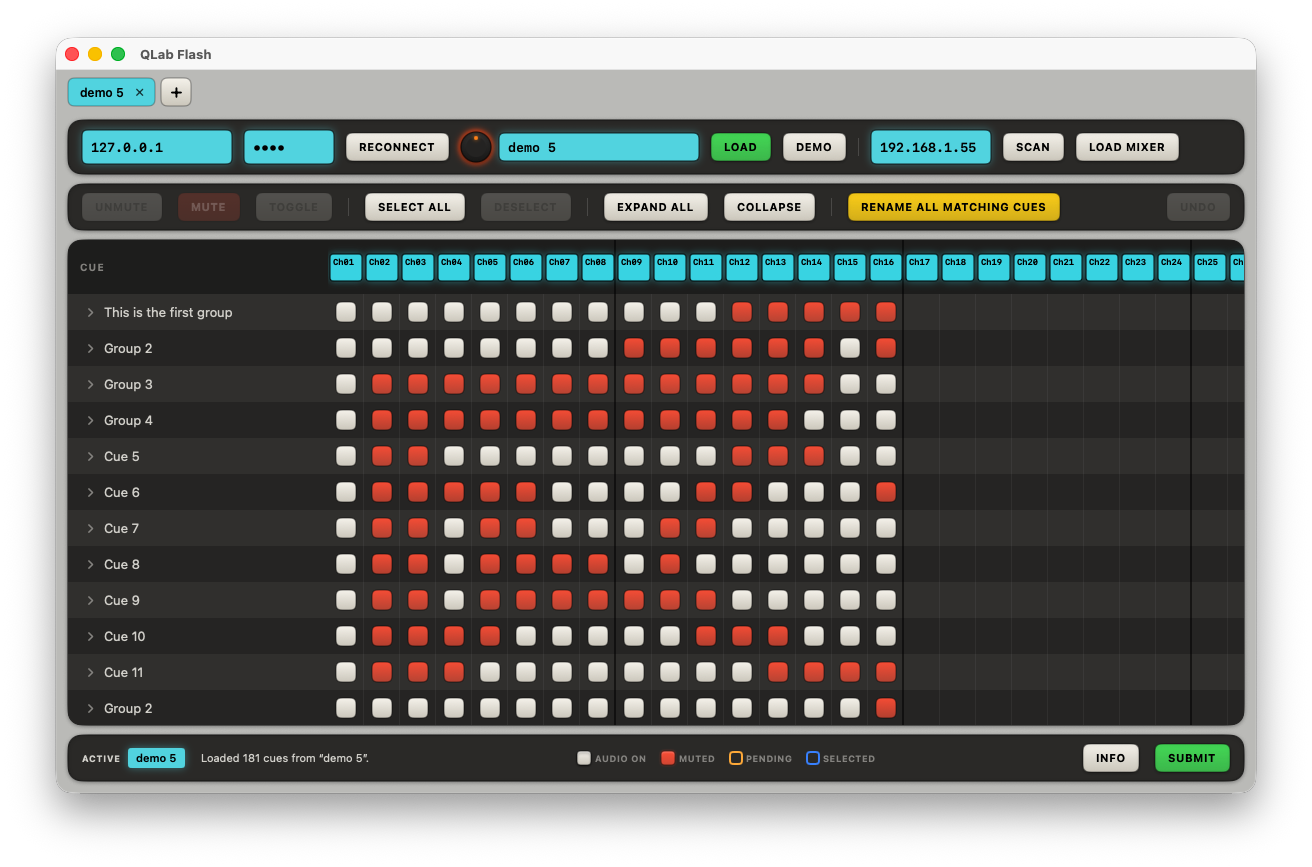
Setting up mic mute cues inside QLab means clicking through every cue, channel by channel. On a 30-cue show with 32 mics that's a thousand checkboxes. QLab Flash collapses the whole show into one grid: cues run down the left, mics 1–32 across the top, and each cell is the live mute state for that mic in that cue. Edit them, click Submit, done.
The workflow
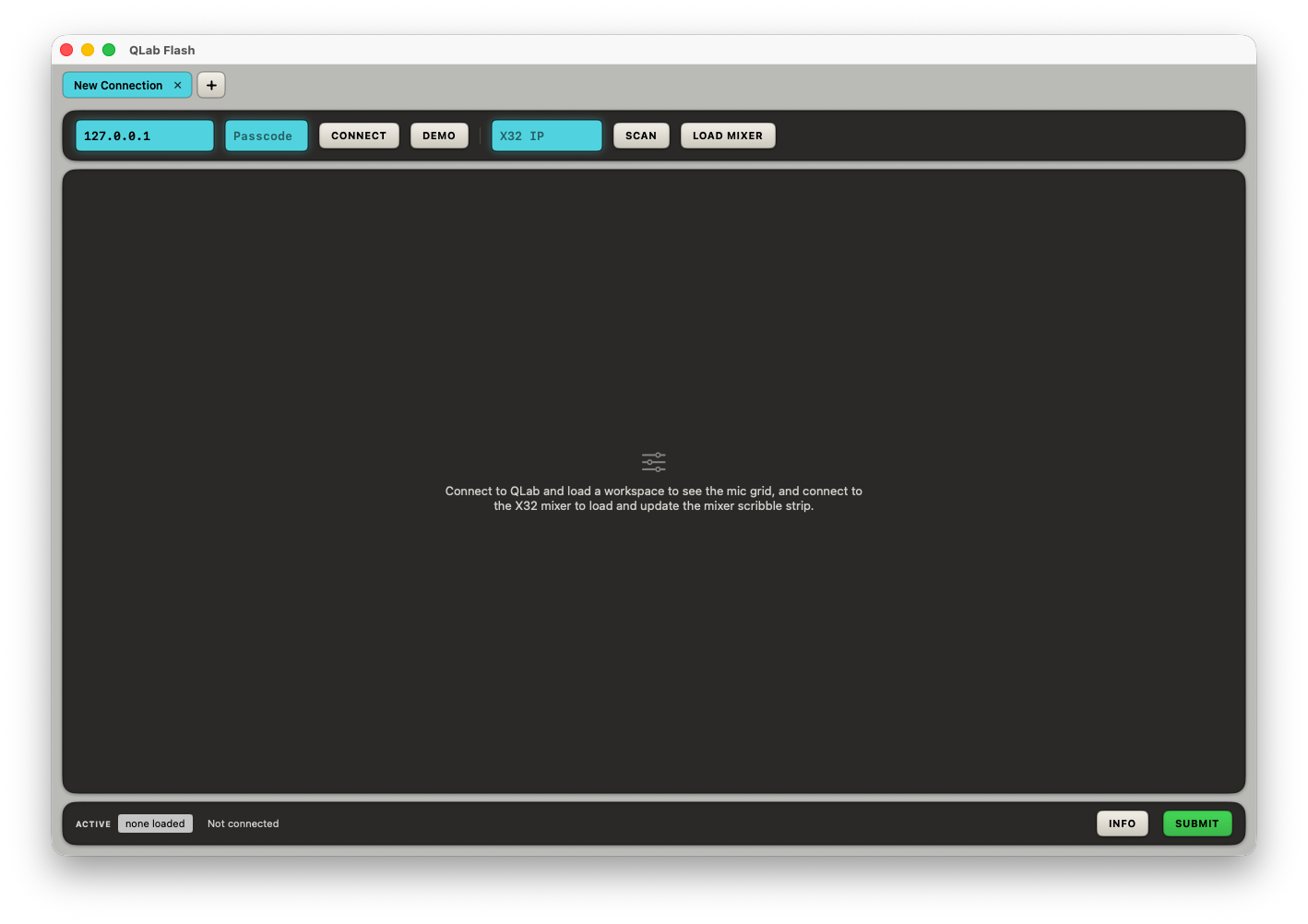
- Connect. Pick an open QLab workspace, enter its passcode if needed, and click Connect. Tick Demo to explore against a fake show first.
- Read. QLab Flash reads the cue list and builds the grid, showing the current mute state of every mic in every cue.
- Edit. Click checkboxes, or drag a rectangle across the grid to select a block of cues × mics and set them all in one move.
- Submit. Submit changed cues pushes only what changed; Submit ALL rewrites every mic in every cue.
Bulk selection — the time-saver
Drag a rectangle to select a block of cells; Shift-click and ⌘-click extend the selection like any spreadsheet. Select all grabs the entire grid — handy when you want to mute everything, then open just the few mics each cue needs.
Name your mics (Doug, Steve, Mary…)
Numbers are hard to read at a glance. Click Mic names… to label all 32 at once, or double-click a column header to rename one. Named mics show vertically under the channel number like a console scribble strip, and the names persist between sessions.
Renaming a mic does three things on Submit:
- Labels that column in QLab Flash.
- Renames that channel's cue in every cue in QLab — every "Mic 1" cue becomes "Annie".
- Sets the channel name on the X32's scribble strip via
/ch/NN/config/name, if you've entered the mixer's IP under Mixer…
So your cast list flows from one place — the worksheet — out to the QLab cue names and the physical console. Leave the X32 IP blank to skip the scribble-strip part.
Rename cues right in the worksheet
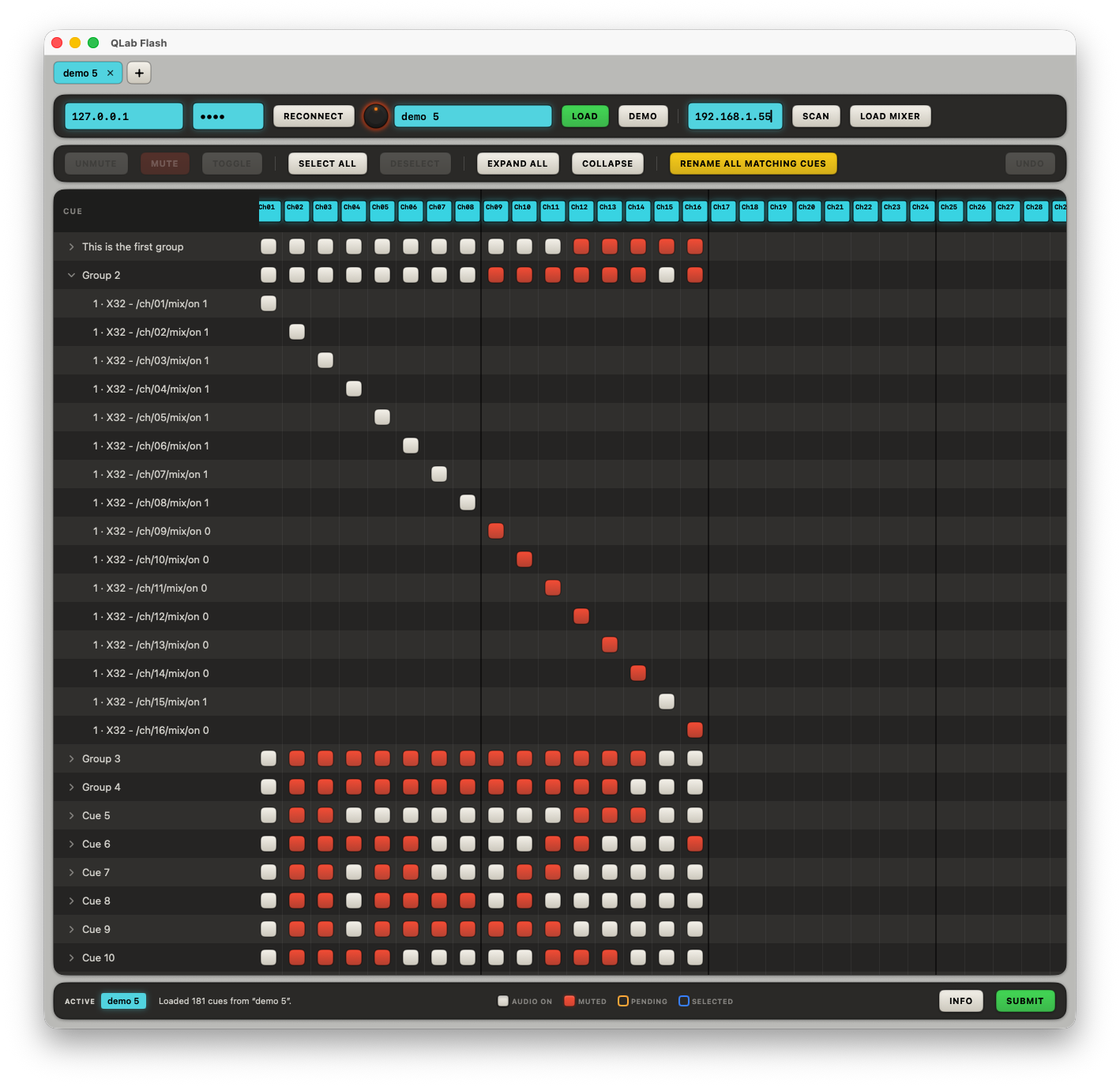
The left column is QLab's full cue hierarchy, expandable like in QLab itself. Double-click any cue or group name and type a new one — cue names, group names, even individual mic cues. Changed names are tinted amber and pushed to QLab when you hit Submit, alongside the mic changes. It's usually faster than clicking through cues one-at-a-time in QLab: double-click, type, Enter, down-arrow, repeat.
Undo
⌘Z (or the Undo button) reverses the last 30 actions — checkbox changes (single, bulk, or keyboard) and any name edits.
What you'll need
- macOS with QLab 5 running an open workspace.
- OSC enabled in QLab (so Flash can read and submit cues).
- Optional: a Behringer X32 on the same network — needed only for scribble-strip channel names.